How to Split a PDF Into Separate Files (Free, 30 Seconds)
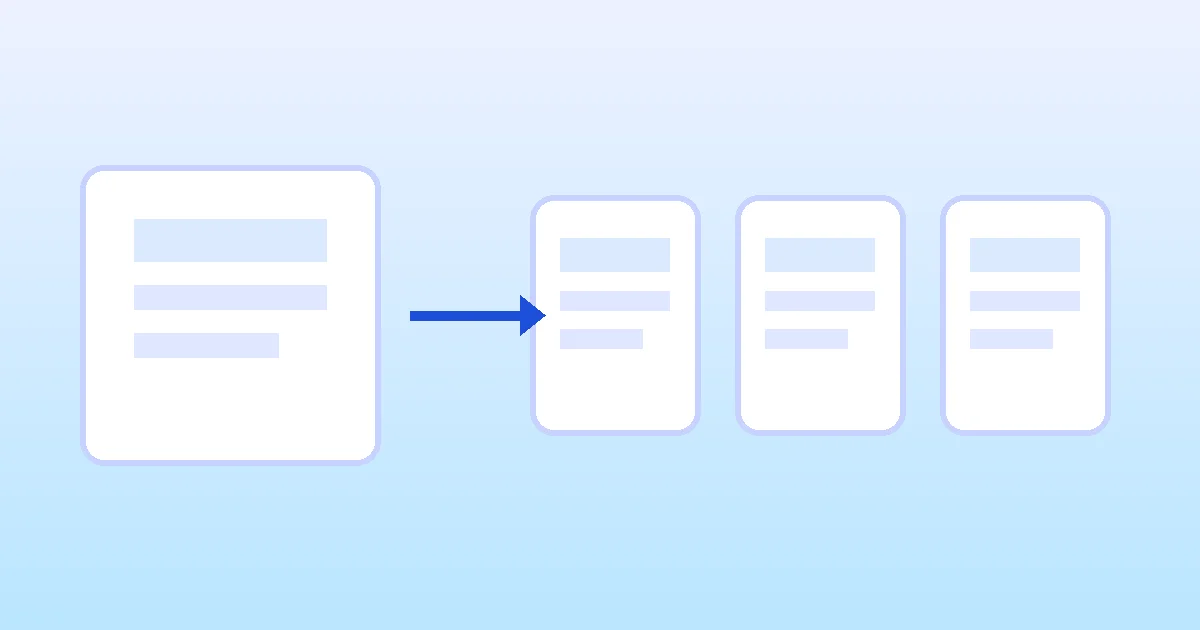
To split a PDF into separate files free, drop the PDF into an online splitter, choose how to split — every N pages, specific page ranges, or individual pages — and download the new files. Your original stays untouched.
You need chapter 3 of a 200-page report — not the whole file. Or a client asked for just the signed contract pages, not the 40-page terms. Or your printer insists on receiving each section as its own document.
Splitting a PDF into separate files takes about 30 seconds with a free online splitter, and you don't need to install anything. This guide covers the three ways to split (by page range, into individual pages, or pulling out selected pages), plus the mistakes that produce broken output.
Why split a PDF instead of sending the whole file
Splitting sounds destructive, but it's the opposite: it reorganizes pages into new files without deleting anything. The original PDF is never touched. Common reasons to split:
- You only need one part: a client, teacher, or printer asks for specific pages, not the entire document.
- The file is too big to email: most inboxes cap attachments at 10–25 MB. The few pages someone needs are usually well under that.
- Each section gets different treatment: contracts go to legal, invoices to accounting, chapters to different editors — each needs its own file.
- You need smaller uploads: splitting before uploading to a portal that limits file size beats recompressing the whole document.
The three ways to split a PDF
Every splitter offers one or more of these three modes. Pick the mode before you start, because it decides what you type into the tool:
- By page ranges (most common): you define the splits yourself — pages 1–10, 11–25, 26–40. Ideal when chapters or sections have natural boundaries.
- Into individual pages: a 30-page PDF becomes 30 one-page PDFs. Useful for archiving, processing invoices one at a time, or feeding pages into other tools.
- Extract selected pages: you pick just the pages you want — say 7, 12–15, and 30 — and get one new PDF containing only those. This is the 'split' you actually want when you only need a piece of the document.
Upload your PDF, choose page ranges or split into individual pages, and download the files in seconds. Free, no sign-up, works right in your browser.
Split PDF →Split a PDF online in 30 seconds
The quickest method works in any browser on Windows, Mac, Linux, or a phone — no software to install and no account needed. Your PDF never needs to leave your device if the tool processes it in the browser:
The new files keep the original formatting, fonts, and images untouched — a page looks identical in the split file. A good tool zips multiple outputs into a single download so you don't have to save files one at a time.
- Open a free online PDF splitter.
- Upload your PDF (drag-and-drop or browse).
- Choose your split mode: page ranges, every N pages, or individual pages.
- Enter the ranges or intervals — e.g., '1-5, 6-12, 13-20' for custom ranges.
- Click Split and download the resulting files (often bundled in one ZIP).
Upload your PDF, choose page ranges or split into individual pages, and download the files in seconds. Free, no sign-up, works right in your browser.
Split PDF →Getting clean, correctly ordered output
Splitting rarely fails technically, but people mislabel and mis-range constantly. Five habits keep output tidy:
- Check the page count first: open the PDF and confirm the total pages before typing ranges — off-by-one mistakes are the most common error.
- Name your ranges before you start: jot down what each part is ("1-8 Contract", "9-40 Terms") so ranges don't blur together in long documents.
- Rename the downloads immediately: split files come out with generic names. Rename them while the order is fresh in your mind — later, 'file-part-2.pdf' means nothing.
- Preview the first file: open one output before downloading everything. If a range boundary was wrong, you catch it before you've sorted a dozen files.
- Verify the total: add up the pages of your outputs — they should equal the original's page count. Anything missing or doubled means a range was typed wrong.
Common split problems and fixes
Most issues are source-file problems, not splitter problems:
- Huge output files: scanned PDFs split slowly and stay big per file. If size matters, compress each output after splitting.
- Password-protected PDFs: a splitter can't open an encrypted file until you unlock it — remove the password first, then split.
- The tool scrambles the page order: this happens with tools that sort uploaded pages alphabetically by filename. Use a splitter that shows a page preview so you can confirm the order before splitting.
- Text becomes unselectable in one output: rare, and usually means the source had a damaged page. Split the rest, then handle the single bad page separately.
Frequently asked questions
Will splitting a PDF change its quality or formatting?
No — splitting keeps every page exactly as it was. Splitting into multiple PDFs copies each range of pages (text, images, fonts, and layout included) into a new file. The original PDF is never modified; you get new files that each open exactly like the original pages.
Is it safe to split a PDF containing personal or confidential information?
Absolutely. The only information a splitter needs is which page numbers belong where — it never reads the page content itself. Still, for sensitive documents, prefer a tool that splits the PDF directly in your browser so the file is never uploaded to a server at all.
Can I pull just one or two pages out of a big PDF?
Yes, and there are two ways. The simplest: split the PDF into individual pages, then merge the page-files you want into a new PDF. Some splitters also offer 'extract selected pages' as a dedicated mode, which does it in one step.
How do I make a PDF smaller for email attachments?
Splitting a PDF by page ranges makes each file smaller, and smaller files attach, upload, and open faster. A 50-page scanned PDF can be several megabytes; the 5 pages someone actually needs might be under one megabyte. Splitting is the quickest way to slim down a shareable file.
Can I download all the split files at once as a ZIP?
Usually yes. The split produces a set of new PDFs, and a good tool zips them into one download so you don't have to click dozens of links. From the ZIP you can upload or attach just the ranges you need.
What's the difference between splitting a PDF and deleting pages from it?
Splitting keeps all pages but rearranges them into several separate files. Deleting pages removes pages permanently, producing a single smaller PDF. Split when you need the pages elsewhere as their own files; delete when pages simply shouldn't exist anymore.