How to Merge PDF Files Into One Document (Free)
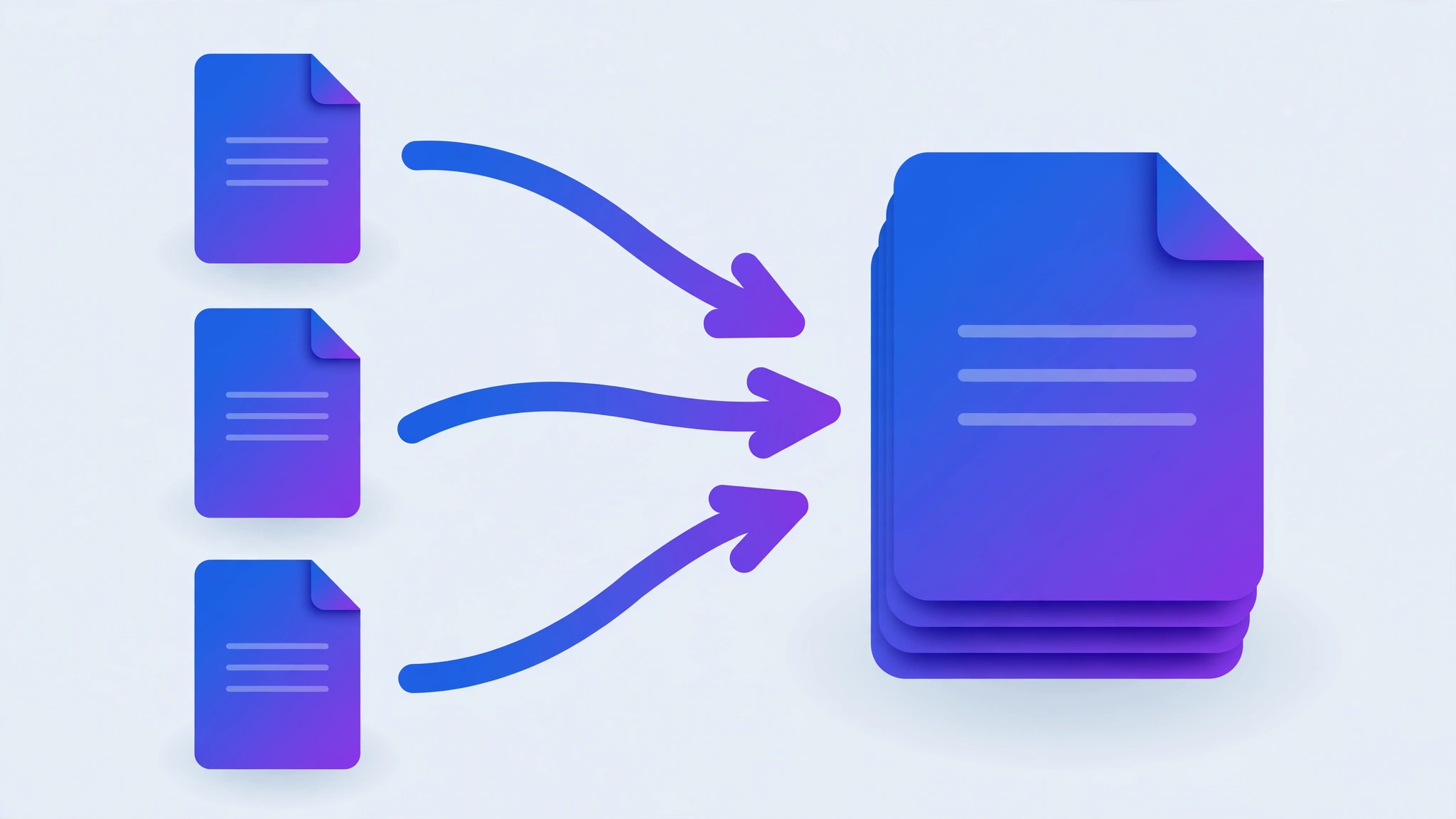
To merge PDF files into one document, upload them to a free online PDF merger, drag them into the right order, and click merge — done in under 30 seconds. Always double-check the page order first; wrong order is the most common merging mistake.
A report split across five attachments. A signed contract plus the terms as a separate file. Scanned pages arriving one by one. Sooner or later, everyone ends up with a pile of PDFs that should really be one document — and merging them is easier than most people expect.
In this guide, you'll learn how to merge PDF files into a single document in seconds, in exactly the right order, without installing anything. The method works on Windows, Mac, phones, and Chromebooks, and it's completely free.
What does it mean to merge PDF files?
Merging (also called combining or joining) takes two or more PDF files and stitches them together into one document. The pages of each file are appended in the order you choose — so File A (3 pages) plus File B (2 pages) becomes a single 5-page PDF.
Unlike converting or compressing, merging doesn't change what's on the pages. Text stays selectable, links keep working, and the layout is untouched. It's purely a matter of combining containers.
The fastest way: merge PDFs online (free)
The simplest method works on any device — nothing to install, no account needed:
- Open the free Merge PDF tool in your browser.
- Drag and drop all your PDF files onto the page (or click to browse and select them).
- Drag the thumbnails to arrange the files — and pages within them — in the exact order you want.
- Click merge and wait a few seconds — everything is combined right in your browser.
- Download your single merged PDF and quickly flip through it to confirm the order.
Drop in your PDFs, arrange them in the order you want, and download one combined document in seconds. Free, no sign-up, and your files never leave your device.
Merge PDF →Get the order right before you merge
Order mistakes are the number one cause of merge do-overs. A quick check before you click merge saves you from downloading, spotting a mix-up, and starting over.
If you're combining a contract, put the signed signature page where it belongs — usually last. For scanned documents, make sure pages are in reading order first; a rotated or upside-down scan will carry over into the merged file. And name your files clearly (01-invoice, 02-receipt) before uploading, so the merge tool picks up the right sequence automatically.
Some merge tools also let you reorder individual pages, not just whole files — useful when only one file has its pages out of sequence.
A good merge tool shows page thumbnails before you commit, so use that preview as your last line of defense. Spend thirty seconds scanning the thumbnails for duplicates, blank pages, or a file that slipped in twice — catching it now is far cheaper than re-sending a corrected document to your whole team.
5 common mistakes to avoid when merging PDFs
- Merging before checking orientation. A sideways page in the source means a sideways page in the result. Rotate pages first.
- Forgetting password-protected files. A PDF locked with an owner password that restricts editing will fail to merge — unlock it first.
- Combining files that should stay separate. A 200-page mega-document is harder to share and search than a few logical files. Merge for a purpose, not just to tidy up.
- Ignoring the final file size. Merging five 20 MB scans produces a 100 MB file that email servers will reject. Compress first if size matters.
- Not verifying the result. Always open the merged PDF and scroll through it. Automated merges are reliable, but a quick sanity check catches the rare page-order surprise.
Other ways to combine PDFs
Online merging is fastest, but you have options:
On Mac, the built-in Preview app can merge via drag-and-drop in the thumbnail sidebar. On Windows, Microsoft Edge can print multiple PDFs into one, though you lose control over order. Adobe Acrobat Pro (paid) offers the most control, including bookmarks and page numbering across merged files.
For everyday merging, though, a free online tool is hard to beat — it handles ordering, preview, and download in one tab, on any device.
Frequently asked questions
Does merging PDF files reduce their quality?
No — merging joins files end to end without changing their contents. Pages keep their original layout, fonts, and quality. The file size of the merged PDF is roughly the sum of the individual files.
What is the maximum PDF size I can merge online?
Most free online tools handle files up to 50–100 MB each. If your PDFs are very large, compress them first with an online PDF compressor to make the merge faster.
Is it safe to merge PDF files online?
It depends on the tool. Prefer one that merges files entirely in your browser — your documents never leave your device, so even confidential contracts and reports stay private.
Why does the merge fail for one of my files?
The most common causes are corrupted source files or PDFs protected with an owner password that blocks editing. Try opening each file in a PDF reader first; if one won't open there, it needs to be repaired before merging.
Can I merge scanned pages the same way?
Yes. A scanner's merge or 'combine into PDF' feature usually appends new scans in a fixed order with no preview. A dedicated online merge tool lets you reorder pages by dragging them, which is much more flexible.