How to Reduce PDF File Size Without Losing Quality
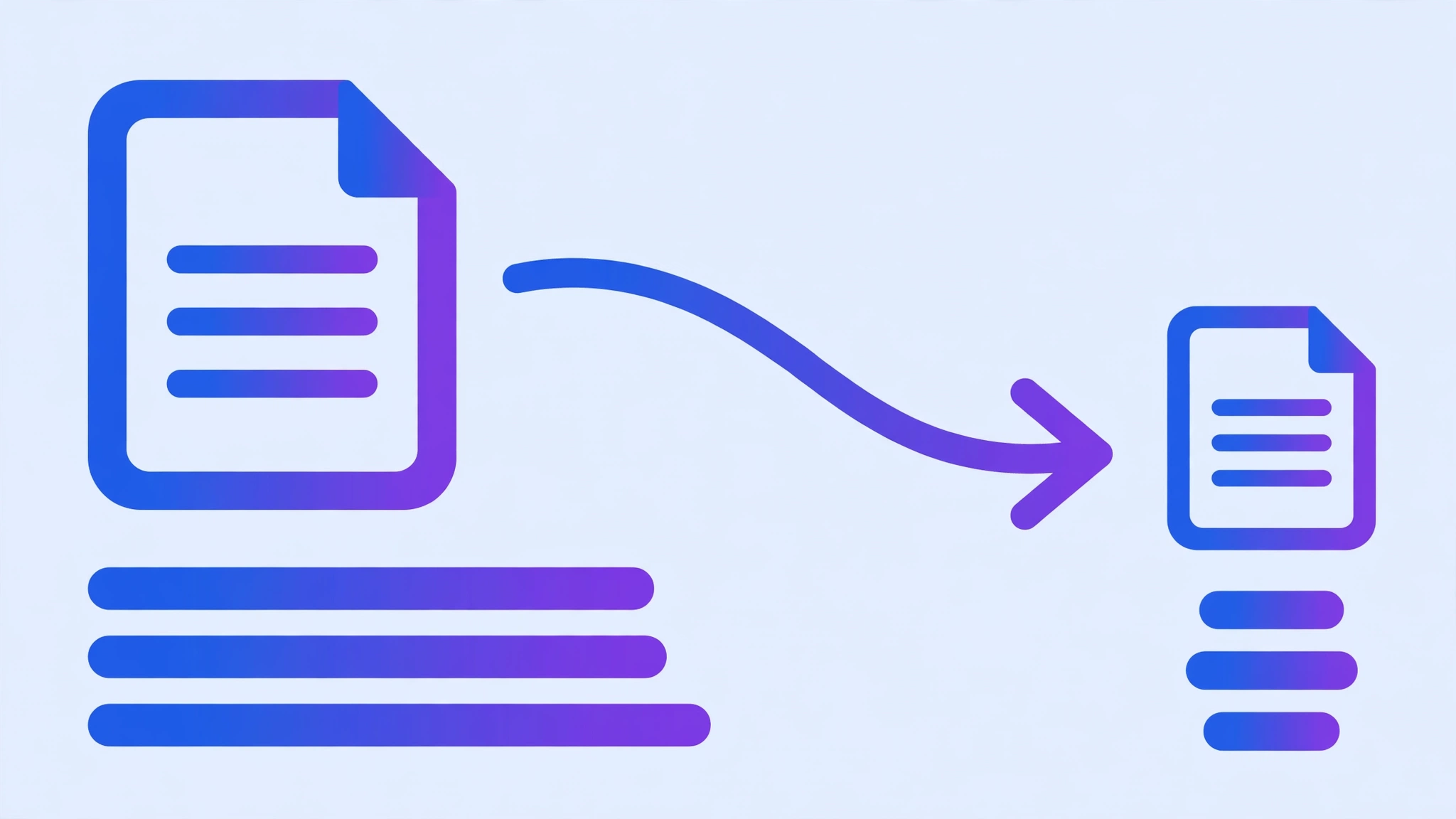
To reduce PDF file size without losing quality, use a free online PDF compressor — it typically shrinks files by 40–70% with no visible difference. For the smallest file, compress images first, then remove unused fonts and metadata.
A 25 MB PDF that refuses to attach to an email. A scanned contract that takes forever to upload. An ebook that eats your phone's storage. Oversized PDFs are one of the most common file frustrations — and the fix takes less than a minute.
In this guide, you'll learn why PDFs get so big, how compression actually works, and the fastest free way to shrink any PDF without visibly hurting quality. No software to install, no account needed.
Why is my PDF so large?
PDFs balloon in size for a few predictable reasons, and knowing which one applies to your file helps you pick the right fix.
Scanned documents are the biggest culprit. A scanner saves every page as a full-resolution image, so a 20-page scan can easily pass 50 MB. Next come high-resolution photos embedded in reports, portfolios, and ebooks. Finally, embedded fonts, layered graphics, and metadata add weight that most readers will never notice — but your email provider will.
The fastest way: compress it online (free)
The simplest method works on any device — Windows, Mac, Chromebook, phone, or tablet — with nothing to install:
- Open the free Compress PDF tool in your browser.
- Drag and drop your PDF file onto the page (or click to browse for it).
- Choose your compression level. A medium setting typically cuts file size by 60–70% with no visible difference; use strong compression only if size matters more than perfect image sharpness.
- Click compress and wait a few seconds — the file is processed right in your browser.
- Download your smaller PDF and check that it looks right.
Drop in your PDF and get a dramatically smaller file in seconds. Free, no sign-up, and your document never leaves your device.
Compress PDF →How much smaller will it get?
It depends on what's inside the PDF. As a rough guide from real-world files:
A scanned 20-page document at 300 DPI will often drop from 45 MB to under 10 MB. A photo-heavy report might go from 18 MB to 5 MB. A text-first document with a few charts may only shrink from 2 MB to 1.4 MB — because there wasn't much waste to remove in the first place.
The key insight: compression removes redundancy. The more redundant data (repeated image data, oversized scans), the bigger the savings.
Reduce PDF size without losing quality: 4 pro tips
- Compress from the original. Every round of compression throws away a little data. Starting from the original file instead of an already-compressed copy preserves noticeably more quality.
- Downsample scanned images to 150 DPI. For on-screen reading and most printing, 150 DPI is indistinguishable from 300 DPI but roughly halves image weight.
- Remove what you don't need. Delete blank pages, duplicate scans, and oversized cover images before compressing — dead weight compresses poorly.
- Convert color scans to grayscale when color doesn't matter. Contracts, forms, and text documents look identical in grayscale at a fraction of the size.
Other ways to shrink a PDF
Online compression is fastest, but you have options:
Adobe Acrobat Pro (paid) offers the most control, including downsampling profiles and font subsetting. macOS Preview can shrink PDFs via File > Export > Quartz Filter > Reduce File Size, though quality control is crude. On Windows, Microsoft Print to PDF sometimes produces a smaller file as a side effect of re-rendering.
For most people, though, these are overkill. A good online compressor matches desktop results for everyday files — and finishes before Acrobat would finish launching.
Frequently asked questions
Does compressing a PDF reduce its quality?
It can, slightly. Re-compressing an already compressed PDF degrades quality a little each time. For best results, always compress from the original file rather than compressing a copy that was already compressed.
What is the maximum PDF size I can compress online?
Most free online tools handle files up to 50–100 MB without trouble. If your PDF is larger than that, try removing unnecessary pages or oversized images first, then compress what's left.
Is it safe to compress a PDF online?
It depends on the tool. Desktop software processes files locally by default. With online tools, prefer one that runs entirely in your browser — your document never leaves your device, so even sensitive files stay private.
Why is my scanned PDF so large?
Scanned PDFs are essentially a stack of full-page images, so they compress extremely well — often 50–80% smaller. Text-based PDFs are already efficient and may only shrink 10–30%.