How to Convert PNG to JPG (Free, No Quality Worries)
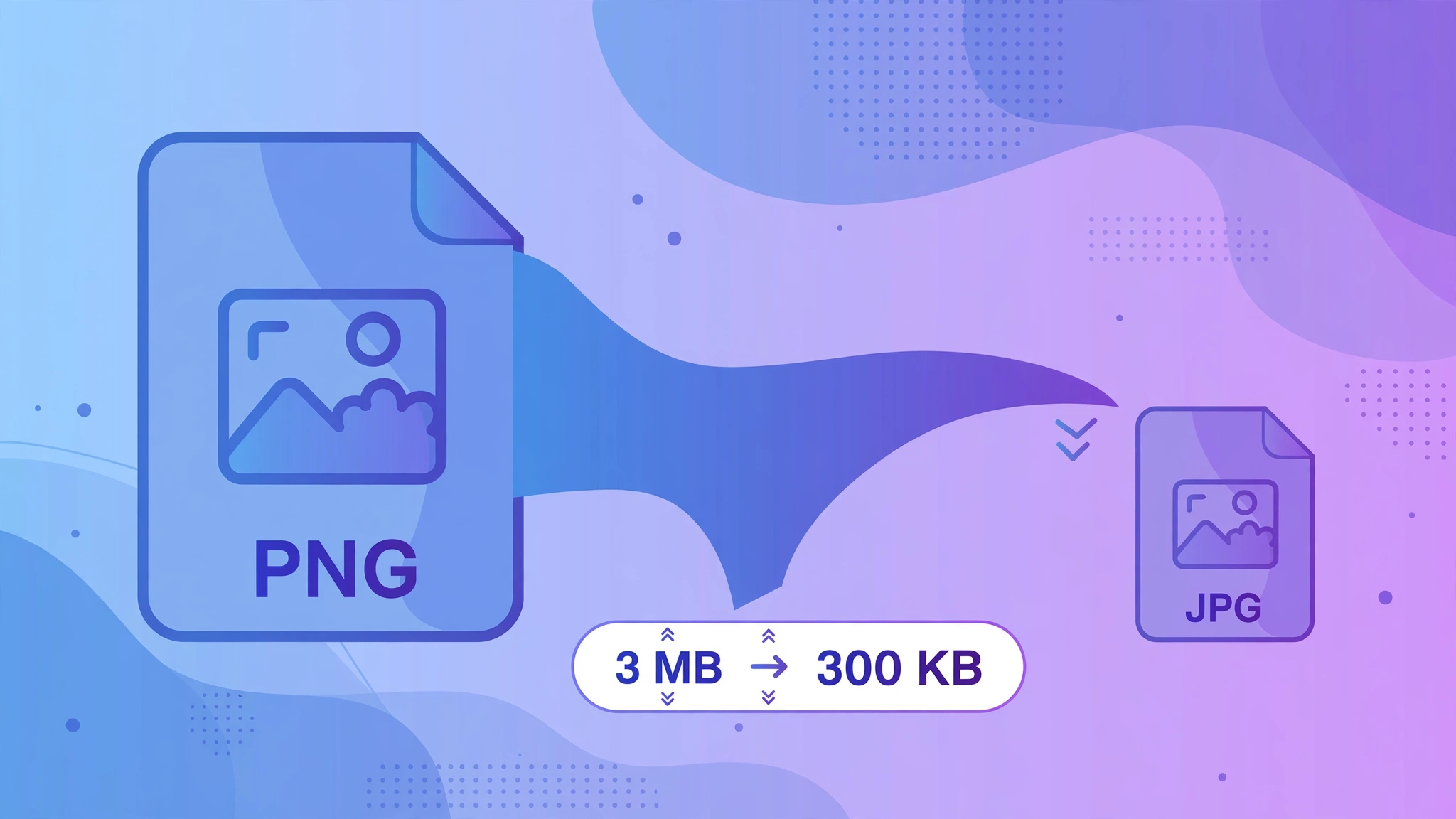
To convert PNG to JPG free, open an online PNG to JPG converter, upload your PNG files, and download the JPGs. It takes seconds, runs entirely in your browser with no sign-up, and typically shrinks screenshots and photos by 70–90% with no visible quality loss.
PNG screenshots are quietly eating your storage. A full-screen screenshot saved as PNG can weigh 3 MB or more, which means a folder of them fills up fast, emails bounce, and uploads crawl. JPG versions of the same images are routinely 70 to 90 percent smaller — and on a screen, they look the same.
Converting PNG to JPG is the simplest fix, and it takes seconds with a free online tool. This guide shows you how to do it, when the switch is a no-brainer, and the two situations where you should keep the PNG instead.
Why convert PNG to JPG in the first place
PNG is a lossless format — it preserves every pixel exactly, which is why it produces such large files. JPG trades a tiny, usually invisible amount of precision for dramatically smaller files. For photos and screenshots, that trade is almost always worth it:
The bottom line: if nobody needs to edit the image again, the JPG version is better in every practical way.
- Much smaller files: PNG is lossless, so it keeps every pixel perfectly — at the cost of huge file sizes. JPG's smarter compression typically cuts 70–90% of the bytes.
- Faster uploads and sharing: smaller files attach to emails without hitting size limits, upload to websites in seconds, and use less mobile data.
- Universal compatibility: JPG opens everywhere — every phone, browser, email client, and printer on earth handles it without a second thought.
- Storage savings: converting a folder of old screenshots can free gigabytes on a crowded drive.
How to convert PNG to JPG online (takes seconds)
You don't need Photoshop or any installed software. The whole thing runs in your browser on Windows, Mac, Linux, Chromebook, or your phone:
Once converted, the JPG keeps the same pixel dimensions as your PNG — only the file size drops. A 3 MB screenshot becomes roughly 300–500 KB.
- Open a free PNG to JPG converter, such as VIPToolsKit's PNG to JPG tool.
- Upload your PNG files — drag them in or click to browse. You can add several at once for batch conversion.
- Click convert and download your JPG files immediately.
Turn PNG files into compact JPGs in seconds. Batch-convert whole folders of screenshots — free, no sign-up, works in your browser.
PNG to JPG →What you lose (and what you don't) when converting
The conversion is lossy, but 'lossy' sounds scarier than it is. Here's the honest breakdown:
One conversion at high quality is effectively a free lunch for screenshots and photos — the savings are enormous and the visual difference is nil. Repeatedly converting back and forth is what degrades quality, so convert once and keep your master PNGs.
- Quality: JPG compression softens fine detail slightly. At normal viewing distances on screens, high-quality JPG output is indistinguishable from the PNG for photos and screenshots.
- Transparency: JPG has no alpha channel. Transparent areas become a solid color, typically white. This is the single biggest gotcha — see the next section.
- Sharp text and flat colors: images with crisp text or large flat areas (diagrams, UI mockups) compress less cleanly in JPG and may show faint artifacts around edges. If it bothers you, keep those as PNG.
- Editability: every save-edit cycle in JPG adds a little more compression damage. Keep the original PNG as your master copy if you'll edit the image again later.
The transparency trap: when to keep the PNG
JPG cannot represent transparency, full stop. If your PNG has see-through areas — a logo on a transparent background, for instance — converting it to JPG fills those areas with a solid color, usually white, and the effect is gone forever. Keep the PNG in these cases:
For everything else — photos, full-screen screenshots, camera images — transparency isn't a factor, and JPG is the right choice.
- Logos, icons, and overlays that need a transparent background.
- Images you'll composite over other backgrounds in design work.
- Screenshots with transparency you haven't flattened yet — flatten them onto white first.
- Any graphics where crisp edges on flat colors matter more than file size.
Converting a whole batch of PNGs at once
A folder of screenshots is exactly the scenario where batch conversion earns its keep. Instead of converting files one by one, upload them all at once:
Batch conversion turns a 20-minute chore into a 2-minute task, and it's the fastest way to reclaim gigabytes from a screenshots folder.
- Upload all the files together instead of converting one at a time — batch converters handle the queue for you.
- Download the results in one go and move them to a folder so they don't get mixed up with the originals.
- Keep the original PNGs somewhere safe (an archive folder or cloud backup) in case you ever need the lossless versions again.
- If some images in the batch need transparency, pull those out and convert the rest — don't batch-convert your logos alongside your screenshots.
Frequently asked questions
Is converting PNG to JPG free?
Yes. VIPToolsKit's PNG to JPG converter is free with no sign-up, no watermark, and no daily limit on everyday use. You can convert one image or a whole batch.
Does converting PNG to JPG reduce quality?
Some, but for most photos it's invisible. JPG uses lossy compression, so fine detail softens slightly. At high quality settings the difference is unnoticeable on screens — you mostly gain a dramatically smaller file. Converting back and forth repeatedly is what actually degrades quality, so keep your original PNG if you plan to edit later.
What happens to transparent backgrounds?
JPG has no transparency, so any transparent areas become a solid background color — usually white. If you need a transparent background (a logo, an icon, an overlay), keep the PNG. For screenshots with transparency, flatten them onto white first.
Can I convert multiple PNG files at once?
Yes — upload several PNG files at once and convert them all in one go instead of repeating the process per file. That's the practical way to handle a folder of screenshots.
Can I convert PNG to JPG on my phone?
Yes. The converter works in any modern browser on Windows, Mac, Linux, Chromebook, Android, and iPhone. On mobile, watch where your browser saves downloads — check Files or Downloads if the converted file doesn't open immediately.
How much smaller will my file get?
A typical full-screen PNG screenshot (2–4 MB) usually comes out as a JPG under 500 KB — often 70–90% smaller. Photos see similar savings. The exact ratio depends on how much detail and flat color the image contains.